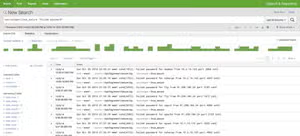
Help! I can’t export more than 10,000 events!
Tips & Tricks SplunkIf you have ever tried exporting lots of events from Splunk UI then you probably know that there’s a hardcoded max of 10,000 lines. This is to prevent users from potentially crashing splunkd or python. Taking the previous into consideration may allow you to view this restriction as a safety feature.
In most cases, users should not need to export 10,000 lines of data. If you’ve got more than 10,000 lines, you should refine your search so that your have less (a lot less) than that. There are probably a few cases where there’s a legitimate reason to export this many lines and more. If you feel the compelling need to be able to export more than 10,000 lines here are a couple of workarounds:
METHOD 1:
Run the search in question and pipe it to csv:
‘sourcetype=”samplesourcetype” SenderIP=”192.168.0.12” | outputcsv myoutputfile.csv’
This will create a file named “myoutputfile.csv” in $SPLUNK_HOME/var/run/splunk that contains the results of your search in csv format. If you’ve got access to the file system to grab the file, problem solved. But what if you have a user who doesn’t have access to the file system and you don’t want to have to do this for them?
METHOD 2:
As a Splunk user, you can output your search results to a csv file on the indexer and then input the data and scan through it at your rated limit. Sounds complicated until you see the example. But this does require a bit extra user involvement.
– Just like Method1, you’ll need to run the search and pipe it to csv file:
‘sourcetype=”samplesourcetype” SenderIP=”192.168.0.12” | outputcsv myoutputfile.csv’
– After your search completes, you’ll need to manually export at your rated limit (10000 results):
‘| inputcsv start=0 max=10000 myoutputfile.csv’
– Once it is finished running, select “Export results…” from the “Actions” pull down menu. Name a file to save to and be careful to include a unique number in the filename to prevent it from being overwritten on next run: e.g. – myoutputfile10000
– Repeat the previous search with a modified start value:
‘| inputscsv start=10000 max=10000 myoutputfile.csv’
– Once it is finished running, select “Export results…” from the “Actions” pull down menu. Name a file to save to and be careful to include a unique number in the filename to prevent it from being overwritten on next run: e.g. – myoutputfile20000
– Run as many additional searches as needed until you have all your results exported.
Related Articles

How To Determine When a Host Stops Sending Logs to Splunk...Expeditiously